HiSider User Guide
This guide will help you get started with the HiSider browser extension, from pinning it to your toolbar to signing up, switching models, uploading documents, and sending feedback.
1. Pin HiSider to your browser toolbar
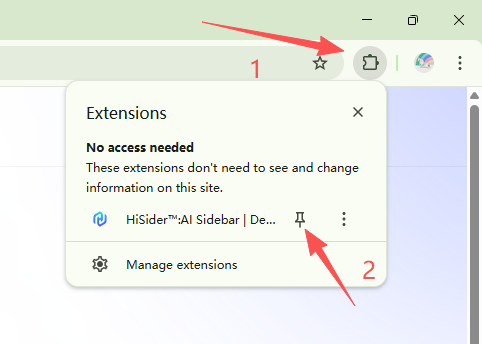
Click the puzzle piece (1) in the top right of your browser. Then, click the little pin (2) next to the HiSider extension to pin it to your toolbar.
2. Open HiSider and sign up
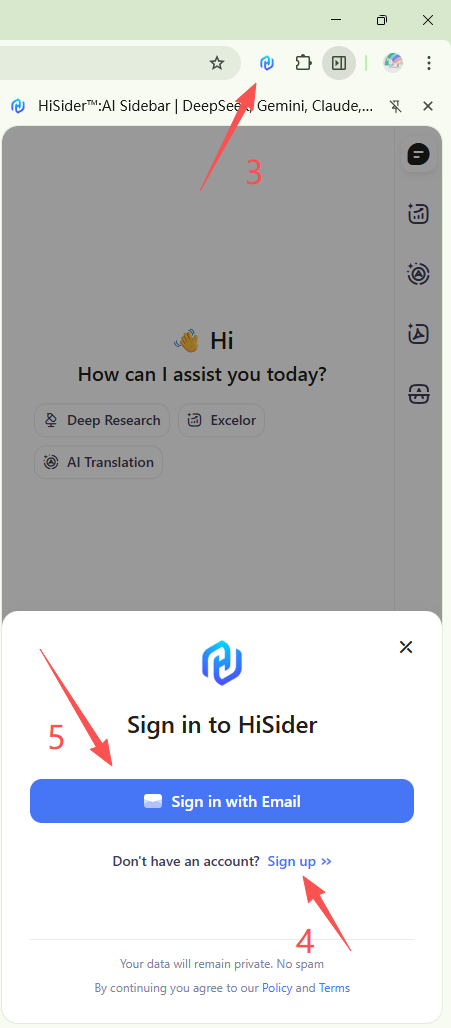
Open the HiSider extension (3) on any page to start using it. Then sign up to HiSider with your email (4) , and next log in to the email account you just registered (5) to complete verification.
3. Switch AI models
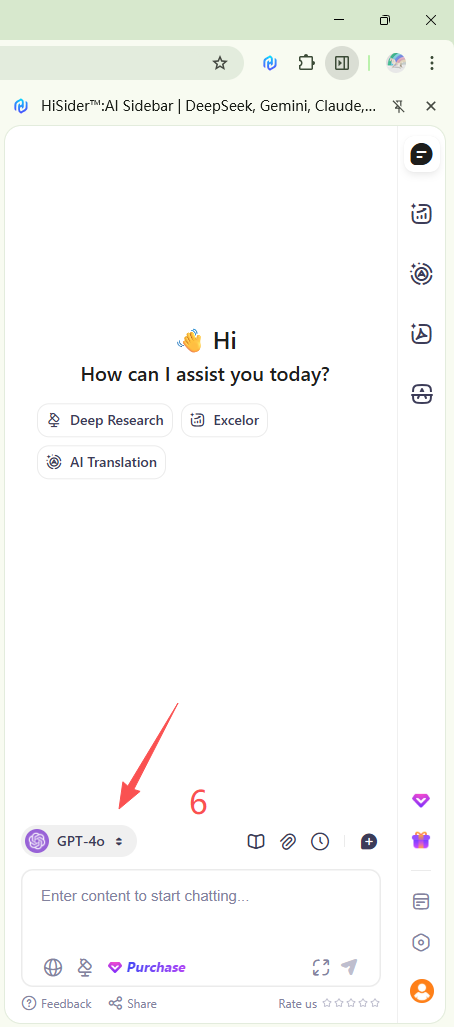
HiSider defaults to using the GPT 4o version model. If you want to switch to another model (6) , you can click the switch button above the dialogue input box.
4. Upload documents and send feedback
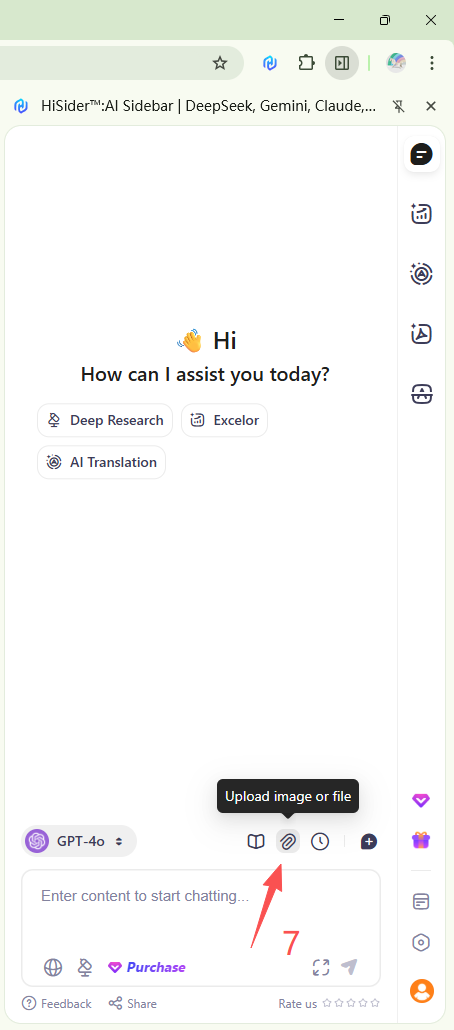
If you want to upload a document, just click the upload button (7) above the dialogue input box.
If you encounter any issues during use, please feel free to provide feedback to us through the form below so we can improve HiSider for you.